---
title: Multi-Currency
description: Spendbase now supports multi-currency management, allowing you to view and manage all spend in your chosen primary currency - even if data is entered or imported in another currency.
---
[Skip to content](https://faq.spendbase.co/en/knowledge-base_spendbase/multi-currency#main-content)
English
Show submenu for translations
[Customer portal](https://support.spendbase.co/tickets-view?hsLang=en)
![dark=on (1).png\]](https://faq.spendbase.co/hs-fs/hubfs/dark=on%20(1).png?height=31&name=dark=on%20(1).png)
Open main navigation
Close main navigation
- English
Show submenu for translations
- [Customer portal](https://support.spendbase.co/tickets-view)
- Go to www.spendbase.co
Go to www.spendbase.co
Hello. How can we help you?
- There are no suggestions because the search field is empty.
1. [Home](https://faq.spendbase.co/en/knowledge-base_spendbase?hsLang=en)
2. [Getting started](https://faq.spendbase.co/en/knowledge-base_spendbase/getting-started?hsLang=en)
# Multi-Currency
## Spendbase now supports multi-currency management, allowing you to view and manage all spend in your chosen primary currency - even if data is entered or imported in another currency.
Spendbase now supports multi-currency management across the platform, allowing to manage and view spend in their primary currency while still entering or importing data in the original transaction currency.
Spendbase currently supports 16 currencies, converted at interbank rates:
- UAH (Ukrainian Hryvnia), USD (US Dollar), CAD (Canadian Dollar), AUD (Australian Dollar), BGN (Bulgarian Lev), CHF (Swiss Franc), CZK (Czech Koruna), DKK (Danish Krone), EUR (Euro), GBP (British Pound), HUF (Hungarian Forint), INR (Indian Rupee), NOK (Norwegian Krone), PLN (Polish Zloty), RON (Romanian Leu), SEK (Swedish Krona)
> Only **Admin** or **Admin SaaS** users can set or change the account’s currency.
#### **How It Works**
All spend data entered - whether manually, via CSV upload, or through integrations - is converted into the primary currency and displayed consistently across:
- Insights Page
- Applications Page
- Employees Page
**IMPORTANT: This change does not affect Discounts or Procurement modules.**
### **Setup Logic**
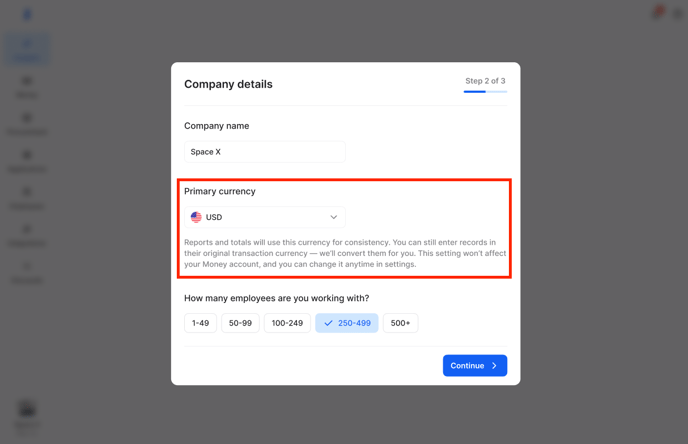
- If you are an existing user and you are logging in for the first time after the release the feature, you see a modal prompt asking you to set your primary currency with a redirect to Settings. **Default currency = USD.**
****
- If you are a new user, during registration, a new field appears in the sign-up flow where you can select your account currency right away.
### **Multi-currency Areas**
- #### **Insights Page**
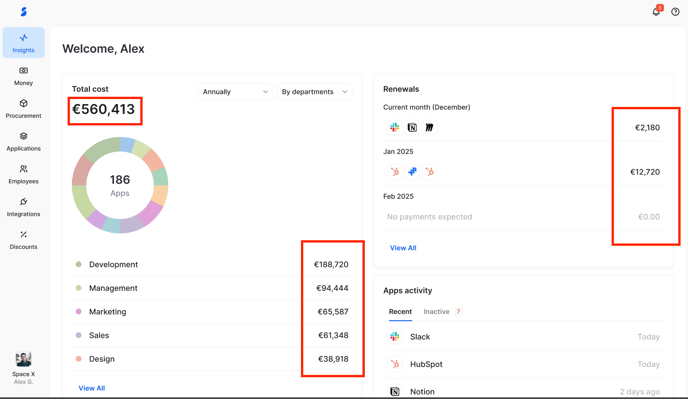
All totals, charts, and widgets (like total cost, departmental breakdown, and renewals) now display values in your primary currency.
For example, if your selected primary currency is EUR, all insights will appear in EUR.
- #### **Applications Page**
In the main table, the following columns now show values in the **primary currency**:
- **Last Payment**
- **Projected Cost**
- **Actual Spend**
The **Last Payment** column displays:
- **Account currency (converted)** — on the first line
- **Original transaction currency** — on the second line
This helps you compare local and unified spend values easily.

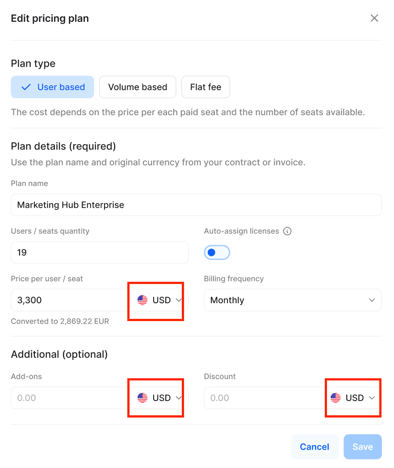
When adding a new **Pricing Plan**, you can now select the currency for all plan types:
- User-based
- Volume-based
- Flat Fee
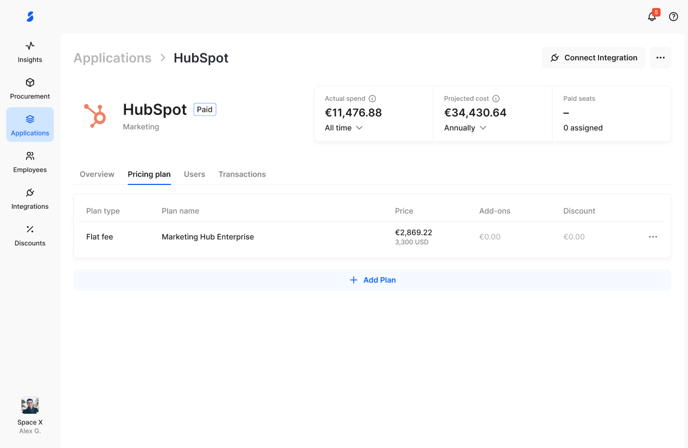
Once a pricing plan is added, it appears in **Application Details → Pricing Plan tab** as:
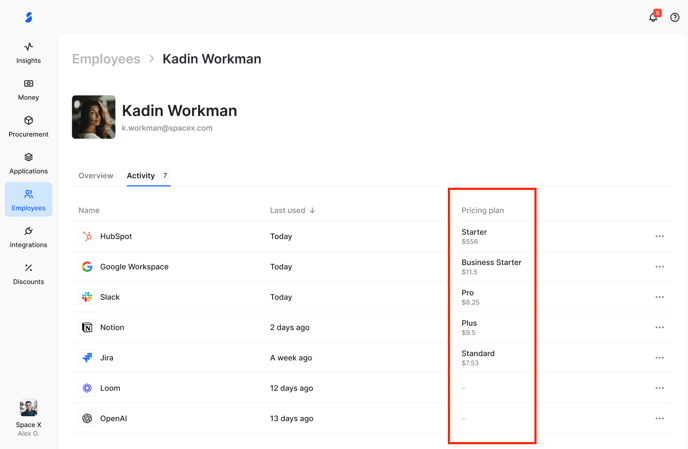
- #### **Employees Page**
In the Activity tab, the Pricing Plan column now displays spend in the primary currency (converted automatically).
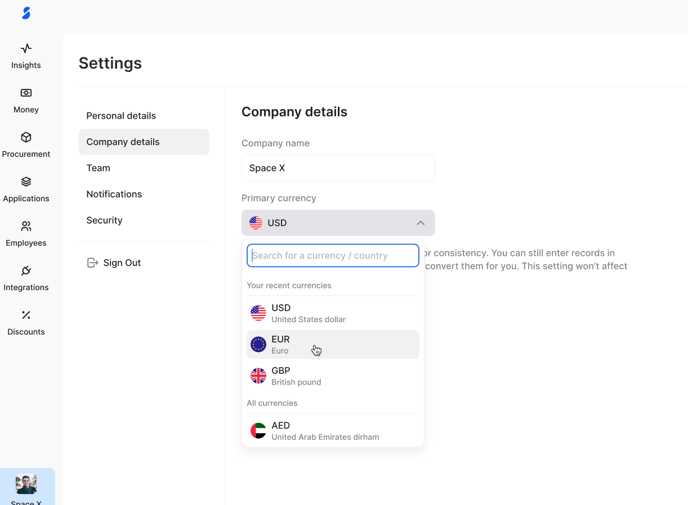
- #### **Settings → Company Details**
Admin and Admin Saas can view or change the Primary Currency anytime in: **Settings → Company Details → Primary Currency.** You can change it at any time

- [I’m an actual user](https://faq.spendbase.co/en/knowledge-base_spendbase/im-an-actual-user?hsLang=en)
- [I’m interested in Spendbase services](https://faq.spendbase.co/en/knowledge-base_spendbase/im-interested-in-spendbase-services?hsLang=en)
- [Getting started](https://faq.spendbase.co/en/knowledge-base_spendbase/getting-started?hsLang=en)
- [Frequently Asked Questions](https://faq.spendbase.co/en/knowledge-base_spendbase/frequently-asked-questions?hsLang=en)
- [Integrations](https://faq.spendbase.co/en/knowledge-base_spendbase/integrations?hsLang=en#main-content)
- [Overview](https://faq.spendbase.co/en/knowledge-base_spendbase/integrations?hsLang=en#overview)
- [Manage integrations](https://faq.spendbase.co/en/knowledge-base_spendbase/integrations?hsLang=en#manage-integrations)
- [Identity providers](https://faq.spendbase.co/en/knowledge-base_spendbase/integrations?hsLang=en#identity-providers)
- [Direct API integrations](https://faq.spendbase.co/en/knowledge-base_spendbase/integrations?hsLang=en#direct-api-integrations)
- [Expense/Accounting software](https://faq.spendbase.co/en/knowledge-base_spendbase/integrations?hsLang=en#expense-accounting-software)
- [HRIS systems](https://faq.spendbase.co/en/knowledge-base_spendbase/integrations?hsLang=en#hris-systems)
- [Browser extensions](https://faq.spendbase.co/en/knowledge-base_spendbase/integrations?hsLang=en#browser-extensions)
- [Applications](https://faq.spendbase.co/en/knowledge-base_spendbase/applications?hsLang=en#main-content)
- [General](https://faq.spendbase.co/en/knowledge-base_spendbase/applications?hsLang=en#general)
- [Adding applications](https://faq.spendbase.co/en/knowledge-base_spendbase/applications?hsLang=en#adding-applications)
- [Managing applications](https://faq.spendbase.co/en/knowledge-base_spendbase/applications?hsLang=en#managing-applications)
- [Applications data syncing](https://faq.spendbase.co/en/knowledge-base_spendbase/applications?hsLang=en#applications-data-syncing)
- [Settings](https://faq.spendbase.co/en/knowledge-base_spendbase/settings?hsLang=en#main-content)
- [Team settings](https://faq.spendbase.co/en/knowledge-base_spendbase/settings?hsLang=en#team-settings)
- [Account settings](https://faq.spendbase.co/en/knowledge-base_spendbase/settings?hsLang=en#account-settings)
- [Procurement](https://faq.spendbase.co/en/knowledge-base_spendbase/procurement?hsLang=en#main-content)
- [General](https://faq.spendbase.co/en/knowledge-base_spendbase/procurement?hsLang=en#general)
- [Approval flow](https://faq.spendbase.co/en/knowledge-base_spendbase/procurement?hsLang=en#approval-flow)
- [Procurement Request](https://faq.spendbase.co/en/knowledge-base_spendbase/procurement?hsLang=en#procurement-request)
- [Slack App](https://faq.spendbase.co/en/knowledge-base_spendbase/procurement?hsLang=en#slack-app)
- [Money EU](https://faq.spendbase.co/en/knowledge-base_spendbase/money-eu?hsLang=en#main-content)
- [General](https://faq.spendbase.co/en/knowledge-base_spendbase/money-eu?hsLang=en#general)
- [Identity verification](https://faq.spendbase.co/en/knowledge-base_spendbase/money-eu?hsLang=en#identity-verification)
- [Top up/Loads](https://faq.spendbase.co/en/knowledge-base_spendbase/money-eu?hsLang=en#top-up-loads)
- [Profile](https://faq.spendbase.co/en/knowledge-base_spendbase/money-eu?hsLang=en#profile)
- [Withdraw/Send out](https://faq.spendbase.co/en/knowledge-base_spendbase/money-eu?hsLang=en#withdraw-send-out)
- [Banking](https://faq.spendbase.co/en/knowledge-base_spendbase/money-eu?hsLang=en#banking)
- [Mobile wallet](https://faq.spendbase.co/en/knowledge-base_spendbase/money-eu?hsLang=en#mobile-wallet)
- [Transactions](https://faq.spendbase.co/en/knowledge-base_spendbase/money-eu?hsLang=en#transactions)
- [Security](https://faq.spendbase.co/en/knowledge-base_spendbase/money-eu?hsLang=en#security)
- [Money US](https://faq.spendbase.co/en/knowledge-base_spendbase/money-us?hsLang=en#main-content)
- [General](https://faq.spendbase.co/en/knowledge-base_spendbase/money-us?hsLang=en#general)
- [Top up](https://faq.spendbase.co/en/knowledge-base_spendbase/money-us?hsLang=en#top-up)
- [Withdraw](https://faq.spendbase.co/en/knowledge-base_spendbase/money-us?hsLang=en#withdraw)
- [Usage](https://faq.spendbase.co/en/knowledge-base_spendbase/money-us?hsLang=en#usage)
- [Transactions](https://faq.spendbase.co/en/knowledge-base_spendbase/money-us?hsLang=en#transactions)
- [Fees & refunds](https://faq.spendbase.co/en/knowledge-base_spendbase/money-us?hsLang=en#fees-refunds)
- [Issues](https://faq.spendbase.co/en/knowledge-base_spendbase/money-us?hsLang=en#issues)
- [Access & login](https://faq.spendbase.co/en/knowledge-base_spendbase/money-us?hsLang=en#access-login)
- [Roles & permissions](https://faq.spendbase.co/en/knowledge-base_spendbase/money-us?hsLang=en#roles-permissions)
- [Team management](https://faq.spendbase.co/en/knowledge-base_spendbase/money-us?hsLang=en#team-management)
- [Reports & statements](https://faq.spendbase.co/en/knowledge-base_spendbase/money-us?hsLang=en#reports-statements)
- [Payments & automation](https://faq.spendbase.co/en/knowledge-base_spendbase/money-us?hsLang=en#payments-automation)
- [Account closure](https://faq.spendbase.co/en/knowledge-base_spendbase/money-us?hsLang=en#account-closure)
- [Security](https://faq.spendbase.co/en/knowledge-base_spendbase/money-us?hsLang=en#security)
- [Discounts](https://faq.spendbase.co/en/knowledge-base_spendbase/discounts?hsLang=en)
[](http://www.spendbase.co)
Cost down ⬇️ Usage up ⬆️
Copyright © 2026, Spendbase